Sessions and the CFP handover
Programme has its own drafts and published revisions. An acceptance in CFP is therefore not the same as a public session. This page is for the programme planner, the speaker manager and, where noted, the speaker.
How the handover works
When the primary speaker (or an authorised organiser) confirms a released acceptance, CFP hands the proposal over to Programme. This is merged and available in the reviewed revision.
-
Speaker
Confirm the released acceptance
The confirmation and a fixed snapshot of the proposal are saved together.
-
Omnia
Create one draft session
Programme creates a private draft session with its speakers and the link to the proposal. Repeats return the same session.
-
Omnia → speaker
Show the result in the portal
“The programme session is being created” changes to “The session is now linked to the programme”.
-
Programme planner
Develop and plan the session
From now on the Programme session leads. Nothing is public until a reviewed publication.
The handover never publishes anything. Operator replay of handovers that stay pending is still open work (#2319).
What happens in detail:
- A fixed snapshot. The first confirmation stores the content, classification, topics and co-speaker participation as they are at that moment. Email addresses, reviewer notes, scores and consents are not included. A repeated confirmation reuses the same snapshot.
- One stable linked session. Programme creates exactly one private draft session with the primary speaker and the co-speakers who were pending or had accepted. A repeated or simultaneous delivery returns the same session and changes nothing; it never overwrites edits made in Programme. Classification values the edition does not have are dropped, not replaced.
- The source is frozen. After handover, CFP refuses to withdraw or reopen the proposal with the message “this proposal has been handed over to Programme. Arrange further changes there.”
- Later participation follows. When a co-speaker later accepts, declines or withdraws, Programme updates the speakers it created from CFP invitations. Speakers that the planner added, confirmed or removed by hand stay as the planner left them. Title, abstract and topics are never copied again.
- Durable delivery. If Programme has not acknowledged the handover, Omnia retries for about three hours (8 attempts) and then logs a warning for the operator. There is no screen yet for replaying a handover that stays pending (#2319).
What the speaker sees. On the submission page and the preparation pages, the speaker portal shows Confirmation saved. The programme session is being created. while the handover is pending; the page checks again by itself. When it is done it shows The session is now linked to the programme. with a button Open session materials. The admin Confirmations page shows the same state with Open programme session.
What this does not cover: replacing or withdrawing the primary speaker after handover, direct invitations and speaker amendment requests are not part of the handover. Coordinate those changes with the programme team.
If an accepted session is missing
Check in this order, within the same edition throughout:
- Internally accepted or actually released? Ask selection management to check release; acceptance alone sends no outcome.
- Primary participation confirmed? Check actual confirmation. An open co-speaker invitation or standalone speaker profile does not replace it.
- What does the speaker portal or the Confirmations page show? Being created means the handover is still pending; wait for the retries. Linked to the programme means a draft session exists: open it from the Confirmations page.
- Linked but not public? A linked draft is private until the planner publishes it. Check the publication workbench.
- Still pending after several hours? Give the operator the edition, call, submission, speaker and visible state. The worker logs a warning when retries are exhausted. Do not create a second session by hand.
Who manages later content changes?
After handover, the Programme session leads. The CFP submission remains the recorded proposal that was reviewed. Do not confirm again or create another session to bring over a changed title, for example.
Example: a confirmed speaker reports a title error. The speaker manager coordinates the correction; the programme team edits the linked draft session and publishes the intended revision. The old title stays public until publication. A request workflow for speakers to submit amendments is not available; do not assume a button for it.
A room change or cancellation needs checks of the time slot, participants and communication. Use the exceptional changes in the planner; do not repeat the CFP handover.
Find your way in Programme
The Programme start page shows where the edition stands: the current phase (Setting up, Planning or Publishing), the number of sessions, how many are placed, how many are on the public schedule and how many changes are ready. A count that could not be read shows Could not be counted, never zero.
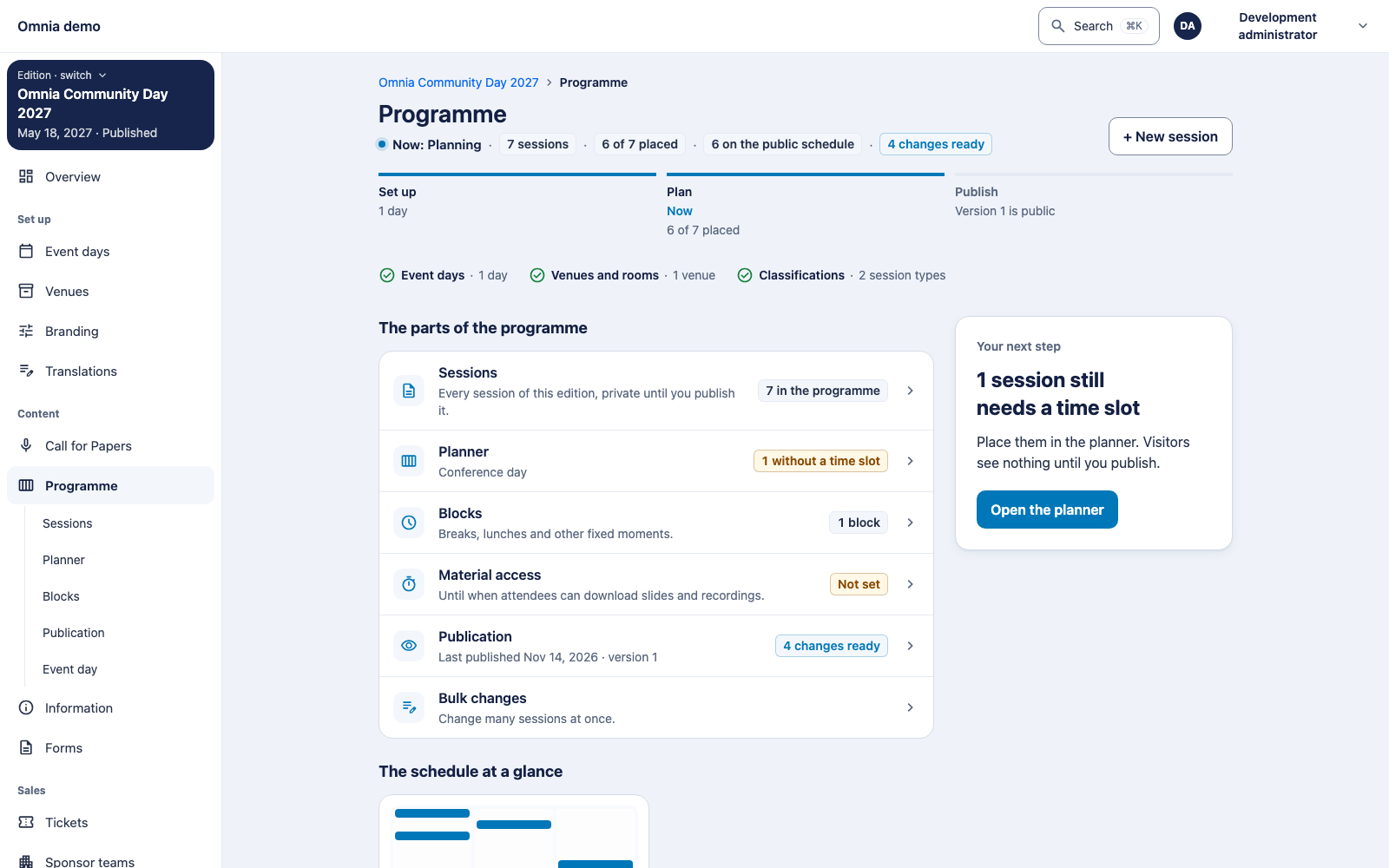
The Before you plan checklist names event days, venues and rooms, and classifications (session types). Only missing days hold back the phase; the other items are information. Your next step suggests the most urgent task. From here you reach Sessions, the planner, Blocks, Material access, Publication and Bulk changes.
Work with the session list
The Sessions list shows one row per session with speakers, day and time, room, demand and status.
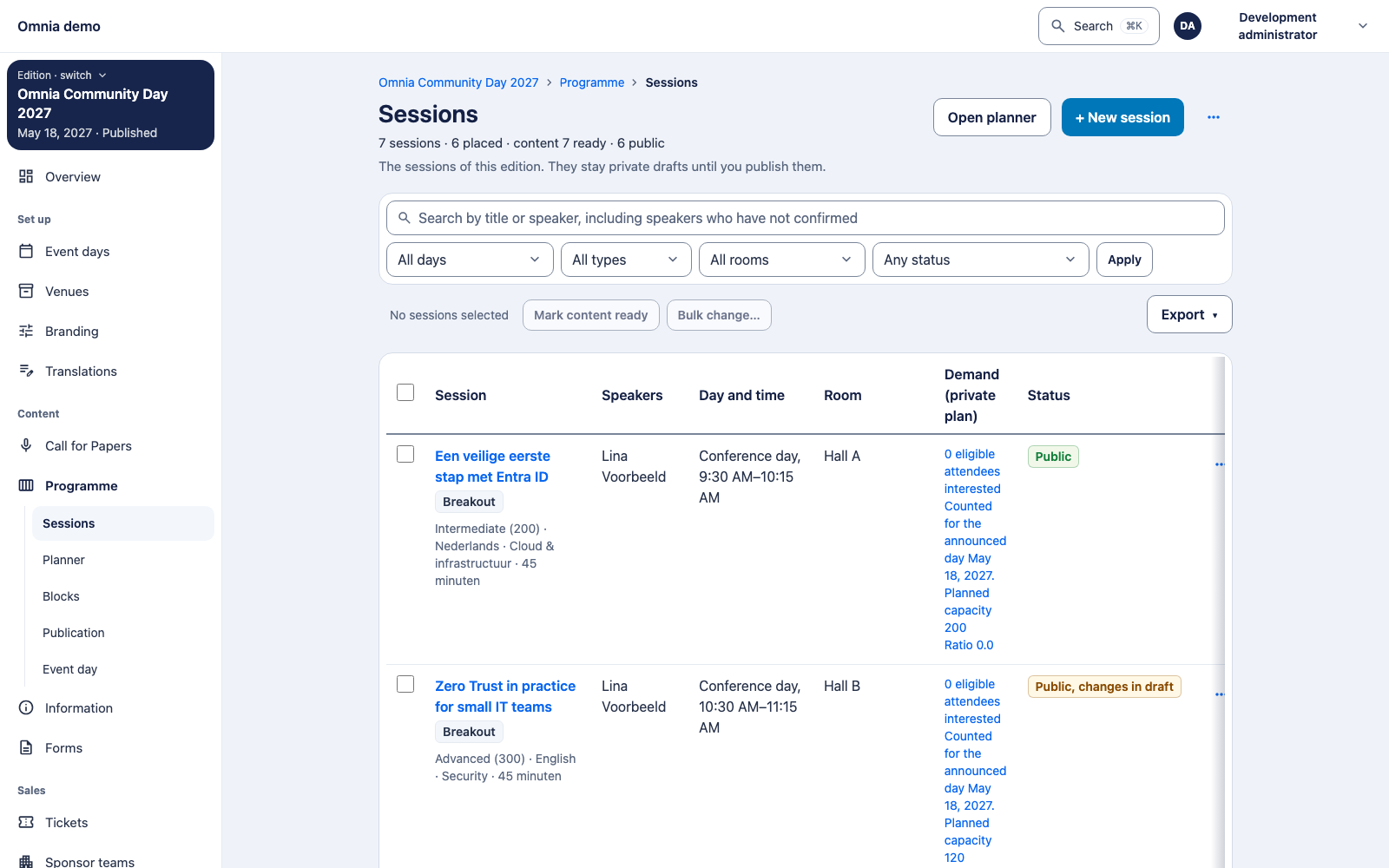
- Search by title or speaker, including speakers who have not yet confirmed.
- Filter by Day, Type, Room and Status. Each option shows how many sessions match; choose No day, No type or No room to find gaps.
- Status is one label showing the step that lags most: Cancelled, Speaker pending, Content not ready, Ready, not public, Public, changes in draft or Public. Hover or focus the label to see each underlying state. Placement does not affect this label; use the planner for that.
Select rows to use the bulk bar:
- Mark content ready prepares the content of up to 50 sessions for publication, each with its own result. Nothing is published.
- Bulk change… opens bulk changes with these sessions selected.
Edit one session
The session page has tabs for Details, Audience, Materials and Time slots. Details is one form with Content, Format and Topics; save it with Save changes. Mark content ready to publish prepares the content as a revision. Saving is not publishing.
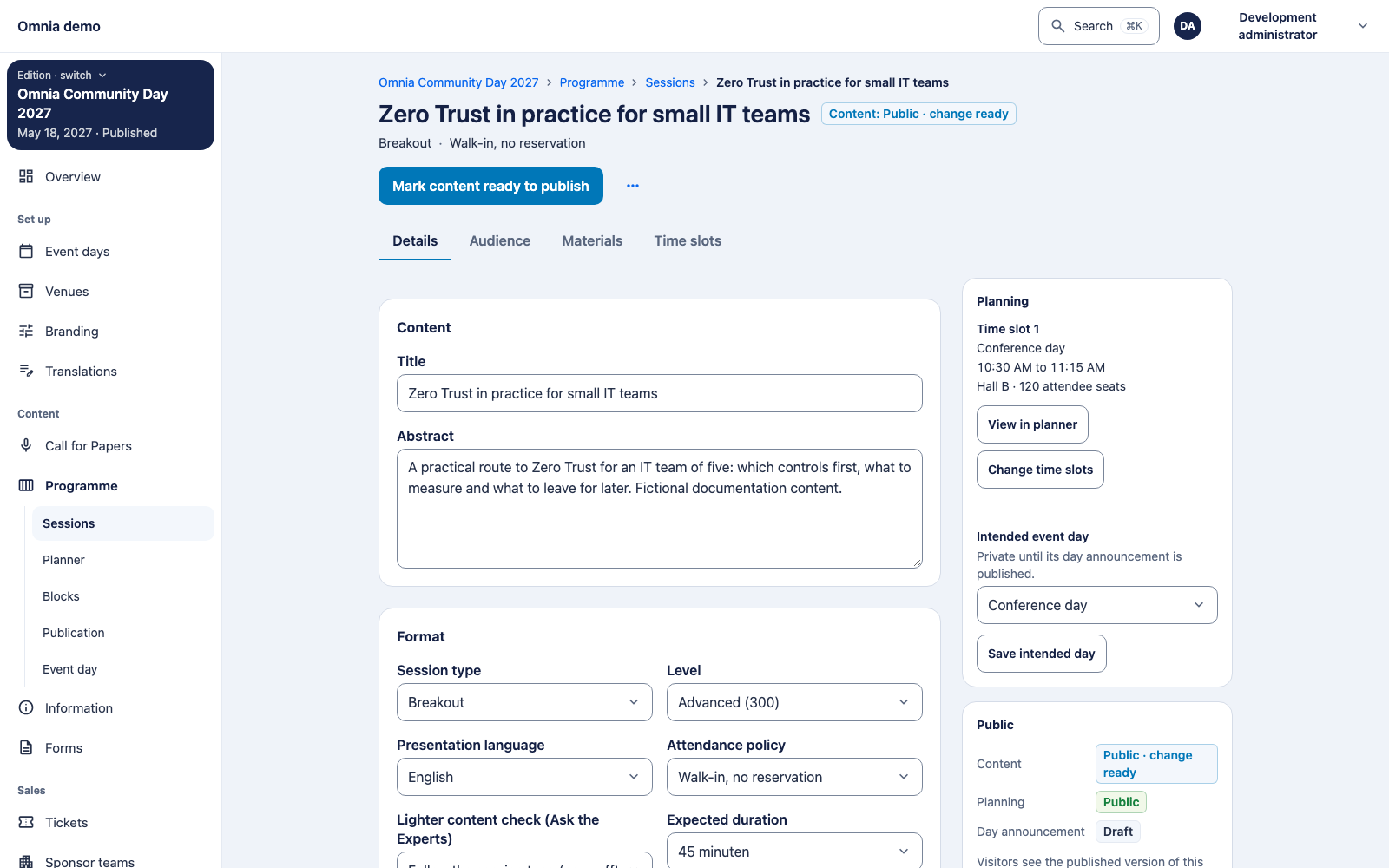
The side rail About this session has three cards:
- Planning: time slots, the intended day, View in planner and Change time slots.
- Public: the state of content, planning and day announcement: Draft, Ready, Public or Public · change in draft.
- Origin: only for sessions from CFP. It says Accepted CFP submission and, if you may open the Confirmations page, offers Open submission.
Classification. Choose session type, level and topics from the edition’s lists under Classifications. The first topic you tick becomes the primary topic; a primary topic is required as soon as there are topics. Retired values cannot be chosen again. For a session from CFP the session type is locked to the submission type: the field is read-only and a different type is refused.
Manage participants
Add a participant by the exact email address of an existing account. There is no search and no list of people.
- Enter one complete address and choose Find account.
- Check the name and choose Add {name}. The person is now Pending; adding never confirms participation.
- Choose Confirm when participation is agreed. Omnia records who confirmed and when.
- Remove takes someone off the draft. Removing a confirmed speaker also removes the confirmation.
Omnia refuses an unknown address, someone already on the session, a speaker who would be double-booked and a change based on an outdated version; reload and try again in that case. Keep roles such as speaker, moderator and panellist recognisable.
Develop an independent session
Create a draft session where appropriate. Complete its title, abstract, session type, level, topics and presentation language. Choose expected duration and attendance policy explicitly; Omnia does not infer them from a label such as “workshop”.
A draft session can remain incomplete. Then plan its days and time slots in the planner and publish through the publication workbench. If the public page still shows old content, check whether you only saved a draft.