Check and publish the programme
The planner and the session pages change a private draft. Publication decides which coherent revisions attendees actually see. This page is for the programme planner and staff who publish; the last sections are for integrators and for the event day.
-
Programme planner
Edit the draft
Prepare content, participants and time slots. Attendees do not see these changes yet.
-
Programme planner
Mark changes ready
Content, placements, day announcements and exceptional changes each become a revision ready to publish.
-
Programme planner
Select and check the consequences
Choose whole revisions and read the impact: relevant changes, speakers and favourites affected.
-
Authorised staff
Publish the checked selection
The selected revisions become the public version. Further edits start as drafts again.
Saving and publishing have different effects. Omnia does not yet send programme change notifications; inform the people affected yourself.
Prepare changes for publication
A change only appears in the workbench once it is ready to publish:
- Content: on the session page choose Mark content ready to publish, or use Mark content ready for several sessions in the session list. The content must pass the readiness check: session type, abstract, a confirmed participant and an attendance policy are always required; title and presentation language too, unless the lighter content check applies.
- Placement: time and room changes from the planner or bulk changes.
- Day announcement: for a session with an intended day but no placement, choose Mark day announcement ready to publish. The intended day stays private until that separate day change is published.
- Exceptional changes: withdrawn placements, cancelled time slots or sessions and reinstatements from the time slots tab.
Ask the Experts and other light formats. A session type can have Lighter content check (Ask the Experts) switched on. A single session can follow its type or switch the check on or off for itself. The name of the type never decides this.
Review in the publication workbench
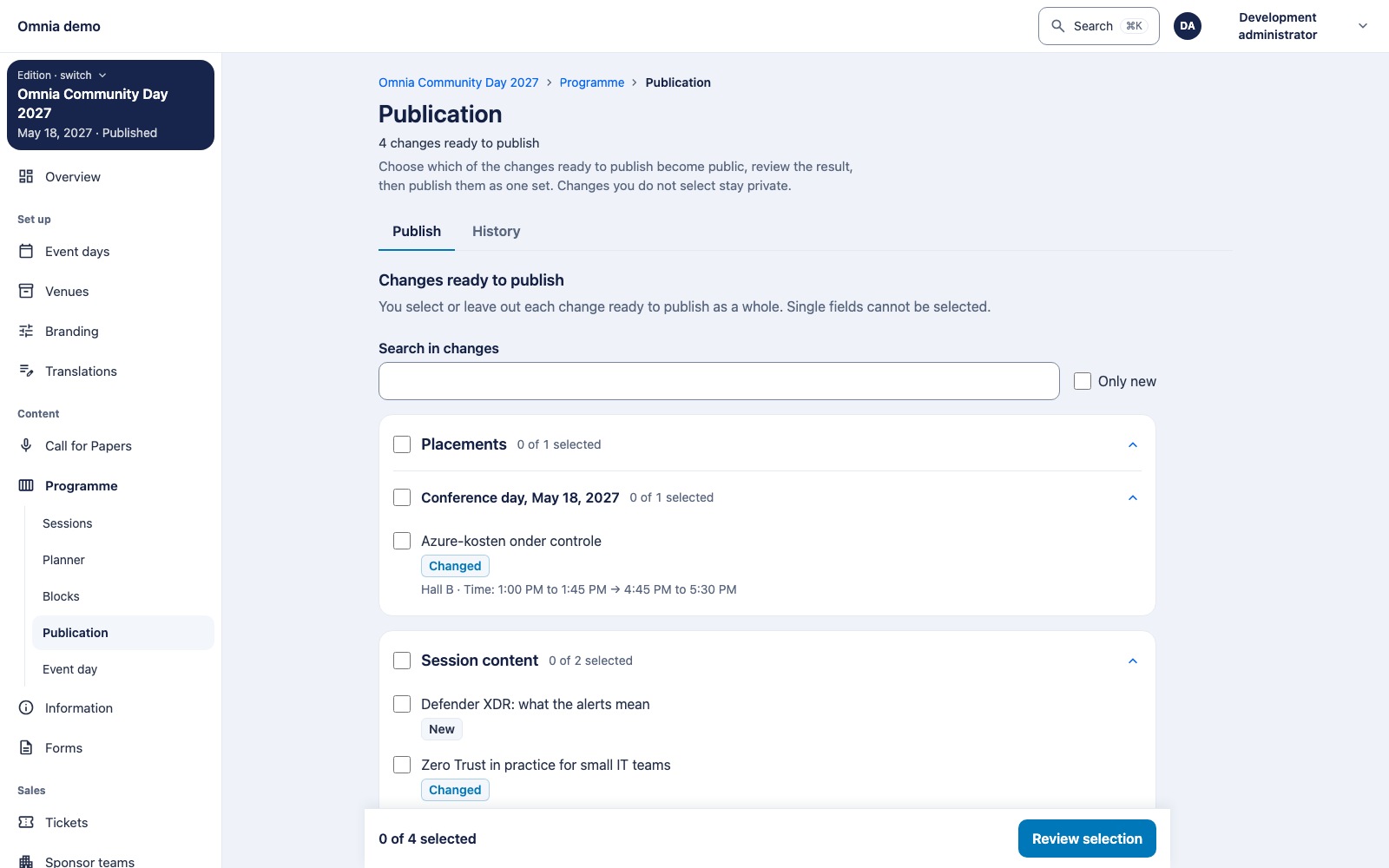
Open Publication in Programme.
- Changes are grouped by kind and placements also by day. Use Search in changes and Only new to narrow the list.
- Each row is marked New or Changed. A changed row shows each field as before → after.
- Select with the check boxes. Select all for a group selects all, some or none. You always select a whole revision; single fields cannot be selected.
- Watch the warning when placements are ready for sessions whose content is not ready. Selecting a placement does not add its content. Choose Show sessions with content not ready and mark their content ready first.
- For an exceptional change, answer the requested actual state of the time slot (Not started, Running, Completed).
Read the consequences
Consequences of this publication is a dry run for your current selection. It sends and stores nothing.
- Relevant changes to a day, time, room or speakers affect the people involved. Text corrected is editorial: Editorial: no one affected.
- Speakers affected counts distinct speakers of the changed sessions.
- Favourites on affected sessions counts per session, so one person can be counted for several sessions.
- A day change can delete favourites: {count} favourites are deleted because attendees lose access. This affects attendees whose ticket does not cover the new day, and only for the day that is currently public.
- A workshop whose room is smaller than its sign-ups is a warning; publication remains possible and no reservation is removed.
Then choose Publish selected changes, check the count in the confirmation and choose Publish now.
When publication is refused because an event day was removed
A captured session day or placement does not hold its event day, so
the day can be removed from the event while the revision waits.
Publication then refuses the selection (event-day-removed)
and the form shows: “A selected session day or placement is on an event
day that has been removed from this event. Capture the session’s day or
placement again on an existing day, then review the selection again;
nothing was published.”
- Find the session or placement named in the refusal.
- Place it again on a day that still exists.
- Review the selection again, then publish.
The review reads the event’s current days. Confirming holds those days until the publication has committed, so removing a day and publishing to it cannot both succeed: if the removal commits first, the publication is refused; if the publication commits first, the day can no longer be removed while it is public. Nothing is published on a refusal.
Inform the people affected
Programme change notifications are not sent yet. The workbench itself says so: the figures show who is affected, not messages that will be sent. Plan your own message to speakers and attendees for relevant changes, and check the result as a visitor.
Verify as a visitor
Open the public programme and the session page, preferably in another browser context. Check time zone, day, language, participants and accessibility. Admin can show a newer draft while visitors see the most recent published revision.
Use the publication history to establish which change was released. On a failure or uncertain outcome, first refresh the current state rather than repeating an action that may already have completed.
Export and print
Under Export on the Planner and Sessions pages, choose Which programme: Published programme or Draft, marked DRAFT. A draft file has DRAFT in its name and on every row; printed drafts carry a watermark.
| Export | Format | Confirmation |
|---|---|---|
| Full programme | CSV | Sign in again and confirm |
| AV and crew overview | CSV | Sign in again and confirm |
| Room schedules to print | Printable page, one page per room, optionally for one day | Sign in again and confirm |
| Capacity and catering | CSV | None |
The first three contain speaker names. Omnia sends you to sign in again with your identity provider, then shows Confirm programme export. Choose Confirm export for each download or print; a confirmation works once. The fresh sign-in is valid for 10 minutes by default. Store and share these files as personal data.
On the event day
Event day in the Programme navigation
(/programme/now) is a mobile-friendly view for staff. It
reads the draft and shows per room what is running,
what is next or Free until {time}, with rooms that need
attention first. Badges show Changed, not yet published,
Not published yet, Layout or capacity missing and
Cancelled. Search by room, session or speaker.
The actions Change room, Delay and Cancel… open the usual planner and time slot pages; a change becomes public only with the next publication. This view shows no check-in or occupancy data. Treat last-minute changes as visible operational changes and check affected displays and communication.
For integrators: admin API
The administration contract is
contracts/openapi/omnia.admin.v1.json. All routes require
programme management in the edition.
GET /v1/admin/programme/events/{eventId}/sessions(listAdminDraftSessions):page,pageSize,search(title or speaker, at most 200 characters),dayId,sessionTypeId,roomId(each also acceptsnone),status(cancelled,speaker-pending,content-not-ready,ready-not-public,public-changes-in-draft,public) andoverview.- Prepared revisions expose
values,publishedValuesandchangedFields. - The publication review exposes
changes(session, time slot, kind, whether it is relevant, speakers) andaffectedSpeakers. It is a dry run. GET /v1/admin/programme/events/{eventId}/exports/{format}(exportAdminProgramme):formatisprogramme,creworrooms;source(draftorpublished) is required,dayIdoptional. It needs a fresh step-up and the headerX-Omnia-Export-Confirmation; otherwise 422step-up-requiredorexport-confirmation-required, and 503step-up-unconfiguredwhen step-up is not configured.
What this does not mean yet
- Programme change notifications (C-19) are not sent.
- Publication does not recheck time slot states again at the moment of confirmation (#757).
- The interface is available in English, Dutch, German and Danish. Only English is marked as reviewed; browser, screen-reader and native-language acceptance is open (#488).