Change many sessions at once
Bulk changes apply one change to many sessions, time slots or blocks in a single step: a classification change, a time shift or a room move. The change goes to the private draft and is recorded, so you can restore it. This page is for the programme planner with programme management.
-
Programme planner
Find and choose
Filter the items and choose rows, a page, a range or all matches. The selection is fixed.
-
Programme planner
Preview the changes
See before and after values and findings. Nothing is saved yet.
-
Programme planner
Apply all or nothing
The draft changes and Omnia records the operation with your name.
-
Programme planner
Restore if needed, then publish
Restoring changes only the draft. Attendees see a change only after publication.
A bulk change never publishes anything. Review the prepared revisions in the publication workbench.
Open bulk changes
Open Bulk changes from the Programme start page
(route /programme/bulk). You can also select sessions in
the session list and choose Bulk change…; those
sessions are then already selected.
1. Find items
Filter by day, room, speaker, topic, level, language, session type and publication or planning status (Published, Draft, Placed, Unplaced). Choose whether to include blocks; blocks respond only to the day, room and published/draft filters.
2. Choose items
Choose individual rows, the current page, the visible range or all matches. Items, sessions and rooms are shown by name, not by internal ID. When you continue, Omnia fixes the selection together with the version of each item. If someone changes an item afterwards, the apply step notices it.
3. Set the change
Choose what to change for the selection:
- Classification: set or clear the language or level; add, remove or replace topics. The session type cannot be changed in bulk.
- Intended day.
- Shift by minutes: move time slots and included blocks earlier or later.
- Room move: a new room and layout for the selected time slots.
4. Preview, then apply
Choose Preview changes. Omnia shows each item with its before and after values and any findings. The preview is stable: it saves nothing and keeps showing the fixed selection.
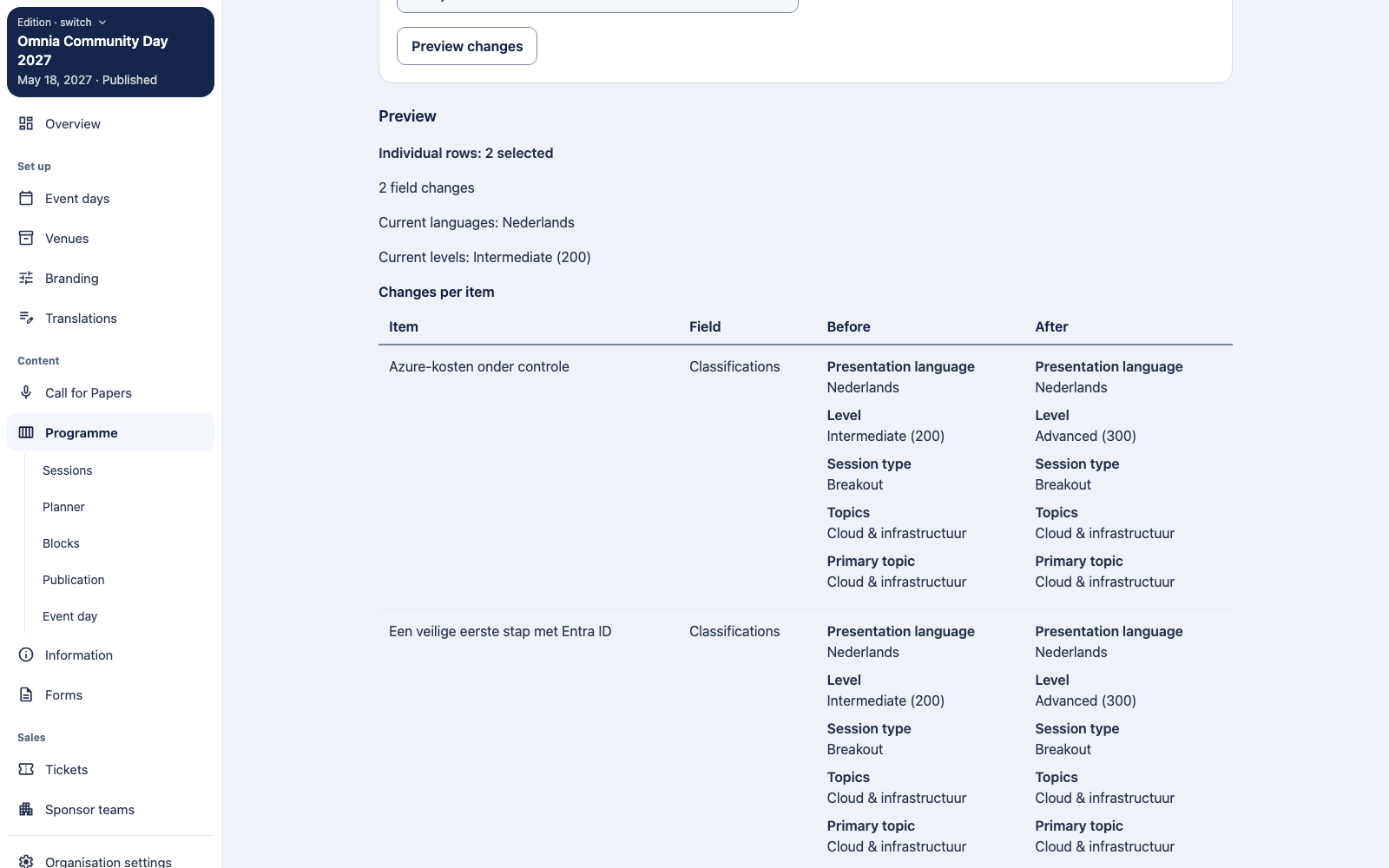
Choose Apply changes when the preview is right. The operation is all or nothing. It is refused as a whole when it would cause a room or speaker conflict, when an item changed since you chose it, or when a time shift or room move hits an unplaced item. Capacity findings are warnings only. Retrying the same request never applies it twice.
What the result means
- All changes go to the private draft; Omnia records the operation and who applied it.
- Time and room changes also prepare revisions ready to publish.
- Topic, level and language changes prepare content only for sessions whose content is ready. Others get a warning that their content was not prepared; complete them on the session page.
- Nothing becomes public until you review and publish it in the publication workbench.
Restore a bulk change
After applying, follow the link to the recorded operation and choose Restore this operation. Restoring changes the private draft back and is recorded as a new operation, which you can restore in turn.
Restoring is refused if any of the items changed since the operation; Omnia does not overwrite newer work. Restoring never changes the published programme: if you already published the bulk change, publish the restored draft again.
Boundary: there is no list of past operations yet. You reach an operation through the link shown after applying it or after a restore. Keep that link if you may need it.