Set up session reviews
You want each submitted proposal to reach reviewers with suitable expertise. Start by configuring topics, group membership and access. This does not configure automatic selection: reviews help people make a decision afterwards.
For: the organiser or staff member with selection-management permission for the edition. Assigning staff permissions and reading the staff list also require appropriate access-management rights. Being responsible for speakers does not by itself grant selection management.
-
Selection manager
Create topics and review groups
One group belongs to one topic; that topic supplies the group’s name.
-
Access manager
Give reviewers access to the edition
A reviewer needs review permission and membership of the appropriate group.
-
Selection manager
Assign reviewers to the group
A colleague handles your own membership; you cannot change it yourself.
-
Speaker → Omnia
Submit a proposal with topics
The first topic is the primary topic and determines the automatic group.
-
Selection manager → reviewer
Check placement and hand over
Move a misplaced proposal or resolve a missing group. The reviewer can then assess it.
Configuration, scoring and decision-making need different permissions. A draft proposal has not been submitted and does not appear in review.
Check the roles matrix before combining access: review permission, selection management and speaker management allow different work.
1. Agree on the approach
Decide which topics to offer, who can assess the content, when you need reviews and who makes the selection. Reviews can happen while the call is open. The review target date is a planning aid; it does not record scores or send outcomes.
A review consists of one score from 1 to 5, from weak to strong, with an optional comment. In the reference version you cannot configure custom criteria, weights, another scale or an automatic acceptance threshold. Agree on what the numbers mean with your team beforehand.
Example team agreement: at 1 there is no clear proposal, at 3 the topic is relevant but learning outcomes remain unclear, and at 5 audience, learning outcome and practical content are convincing. This is an example for team discussion, not a built-in rubric or a standard prescribed by Omnia.
2. Create topics and their review groups
- Define the intended topics in CFP classifications. Use terms that speakers and reviewers understand, such as Cloud & infrastructure and Security.
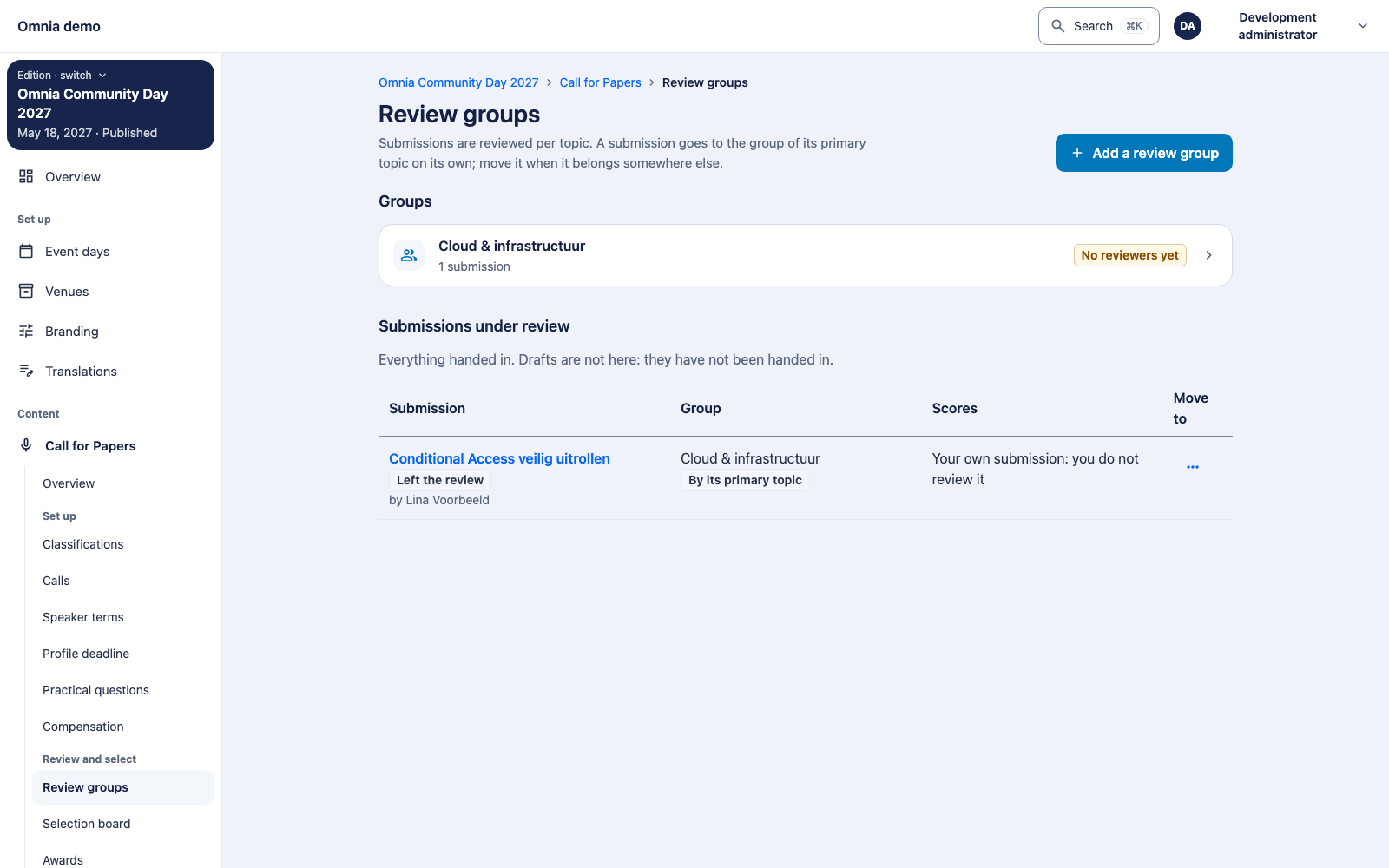
- Within the edition, open Call for Papers → Review groups and choose Add review group.
- Select the topic this group will review and save.
- Repeat for the topics that need their own review group.
A topic has at most one review group. The topic supplies the name; a group has no separate second name. An existing group’s topic does not change. If a topic is no longer offered in the selector, check whether it already has a group.
3. Give reviewers both access and group membership
Ask the organiser or access manager to set reviewers up as staff of the correct edition with permission to review content. Membership alone does not make someone a reviewer without that permission. Conversely, review permission alone does not assign every topic to someone.
Then open the group, choose the action to change reviewers, select the intended staff and save the assignment. Check the names afterwards. When changing the assignment, the selected people determine who remains assigned; take care not to unintentionally deselect existing reviewers.
Reviewing yourself? In the reference version you cannot add yourself to or remove yourself from a group. Ask another authorised colleague to arrange your membership. This protects the rule that you score before seeing other reviews. You can manage other people’s assignment while your own membership stays unchanged.
Nobody to select? Check staff permissions and whether the person assigning reviewers may read the staff list. A selection manager can manage groups without automatically having access to that list. Ask the access manager to resolve it; recreating the group will not fix permissions.
4. Check where proposals arrive
At submission, the first selected topic is the primary topic. Omnia automatically places the proposal in that topic’s group. A proposal with Cloud first and Security second therefore does not automatically go to both groups.
If the primary topic has no group, the proposal remains unassigned. Selection management can see these submissions in the edition-wide overview; a restricted reviewer only sees assigned groups. Make sure these proposals are not overlooked.
Does another group fit better? Use the submission’s move menu in the groups overview and choose the intended group. This sets an explicit placement that takes precedence over automatic routing. The option to follow the primary topic again restores automatic routing. Moving does not erase existing reviews and changes which reviewers have access; use it to put assessment with the right expertise.
5. Hand over a working assignment
Before asking reviewers to begin, check that:
- The correct call and edition are configured and there is at least one actual submitted proposal; drafts do not count.
- The submission is in the intended group, with reviewers who have the appropriate edition permissions.
- Reviewers understand the scale and when the team needs their assessment.
- Each reviewer can reach their own review work list and sees the relevant submissions that have not yet been decided.
Done when: an assigned reviewer can open someone else’s submitted proposal and save their own assessment. Selection management then uses the reviews for selection. Configuration does not accept anything or send an outcome.