Support and follow up speakers
You want speakers to understand what is expected and the organisation to fulfil its own commitments. Use this workflow after outcomes have been released or an authorised direct invitation issued. An internal acceptance alone does not start this preparation.
Your access: speaker management for the correct edition. Calls, speaker terms and decisions need selection management; amounts and claims need separate compensation permission. Check the roles matrix when one person performs several jobs.
-
Speaker manager
Open the correct edition and speaker
Read participation, the individual preparation parts and the relevant deadline.
-
Speaker manager
Identify the next action
Check whether something is genuinely missing or its data is unavailable.
-
Responsible person
Perform the specific next step
A reminder, booking follow-up and missing permission each need a different action.
-
Speaker needs to act
Ask for the missing confirmation or information; name the part and its actual deadline.
-
Organisation needs to act
Handle a hotel request, for example, or ask an authorised colleague to assess an expense claim.
-
Unknown or not visible
Check linking, permissions and source data before asking the speaker to answer.
This is a follow-up working method. The work list is not an automatic reminder service, and a ready label does not establish that every dependency has been checked.
1. Configure preparation before expecting it
Coordinate the required speaker terms with the selection manager, who drafts and publishes them. With speaker management, configure the profile deadline, practical questions and briefing with timeline. Agree material arrangements with the programme team. Only ask practical questions whose answers someone will actually use.
Standard questions can be enabled or disabled per edition: hotel, speaker dinner, attendance days and shirt size. Additional questions use a separate form. An earlier edition’s answer does not automatically apply to this one. Speakers do not need to answer a disabled question; do not remind them about information you did not request.
Check: is the correct edition selected, are official texts published, and is someone responsible for hotel requests and financial questions? Saving a briefing alone does not publish it.
2. Start each day with the speaker work list
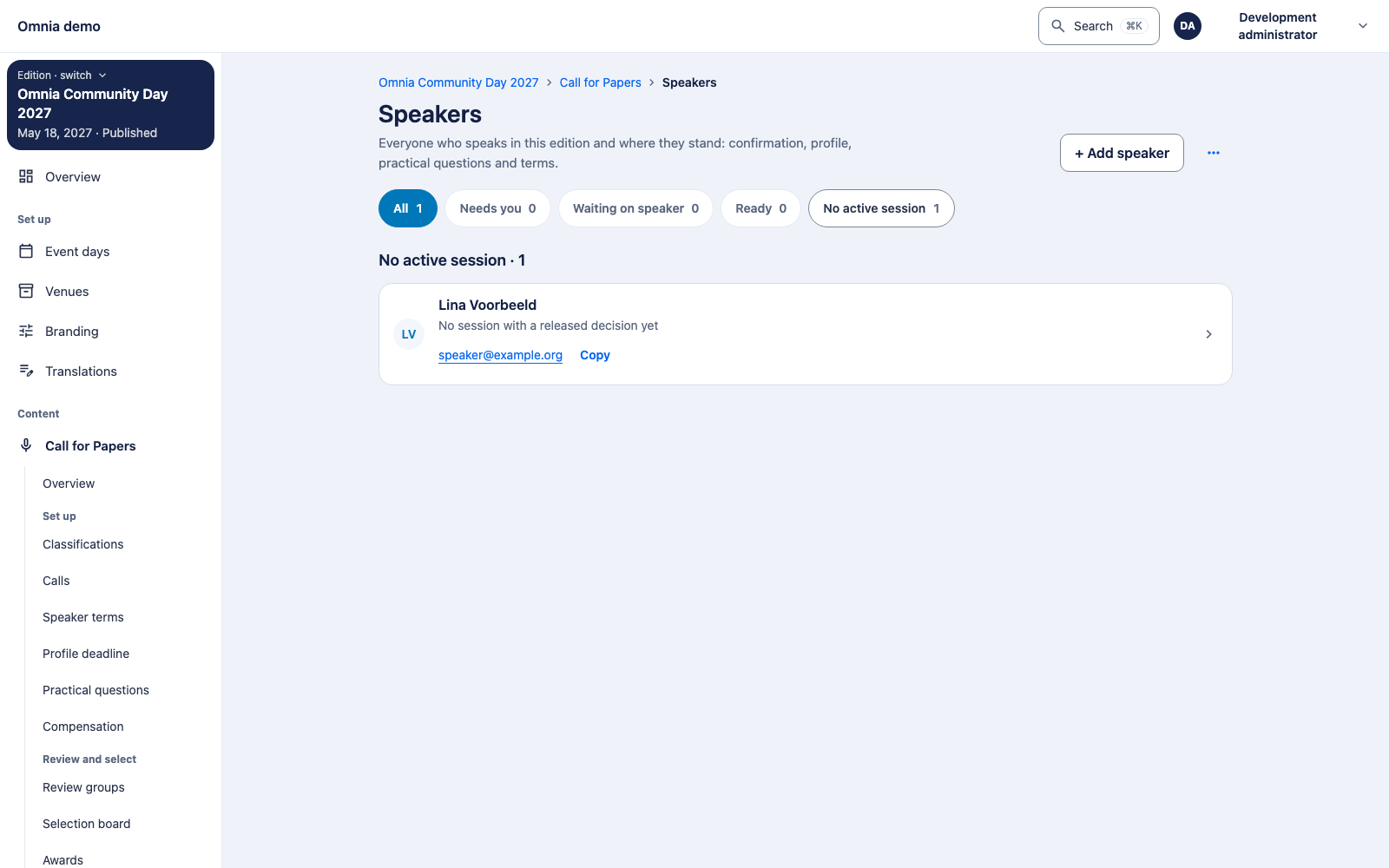
Open Call for Papers → Speakers. First inspect people needing organisational action, then those waiting on the speaker. Open the relevant profile and read each part; an overall status does not identify the action needed.
- Needs you: for example an overdue confirmation, a hotel request needing follow-up or a claim awaiting assessment. Read the part to identify its owner.
- Waiting on speaker: a requested confirmation or preparation step remains open. Check its deadline before contacting them.
- Ready: the data read suggests no action for now. This does not establish that unavailable data, every practical answer or a hotel booking has been checked in detail.
- No active session: inspect the participation link. A standalone speaker profile is not accepted or confirmed participation. This is not an instruction to add the same speaker again.
Practical details may count as answered once answers are saved; read them to check that everything you need was actually supplied. Unavailable data differs from missing answers. An invisible claim does not establish that no claim exists either: check compensation access first.
3. Use the right deadline for each task
Call closing: governs new submissions and the normal proposal-editing window. It is not the accepted speaker’s participation-confirmation deadline.
Participation confirmation: the period is configured per call and starts when an acceptance is released. Read the actual deadline per participation. A co-speaker invitation is separate participation; do not automatically apply the primary deadline to it.
Profile deadline: belongs to the edition and limits speakers’ own profile edits. Corrections after it go through the speaker manager.
Material deadline: check it separately in Programme’s material journey. Participation confirmation does not automatically make material available.
Use the edition timezone to read dates and times. An overdue confirmation needs follow-up; the session does not automatically lapse and a reserve proposal is not automatically accepted. Discuss an extension or replacement with the authorised colleague and check which action your version supports.
4. Follow up specifically without assuming automatic sending
Before contacting someone, check that the action remains open and they are not waiting on the organisation. Say “confirm your primary participation before the displayed deadline”, for example, rather than just “complete everything”.
In the reference version the work list itself does not send reminders. Copying an email address sends no message. Use the agreed communication channel and rely on automatic reminders only after establishing that capability in your installation. Normal decision messages after release are a different process.
Confirming on the speaker’s behalf: speaker management may confirm a released acceptance for the primary speaker through the confirmation journey. Check person, session and genuinely agreed participation; this is a participation action, not a way to clear an unanswered request. Selection management alone is insufficient. This action does not accept the speaker’s personal terms or consent.
5. Handle hotel requests outside and inside Omnia
An answer containing desired hotel nights is a request. Read the specific nights, arrange the booking outside Omnia, then record handling as received, booked or declined. Add the hotel name and confirmation where applicable; the speaker can see recorded handling.
Received does not mean a room is reserved. After a changed request, check whether the earlier booking still fits and follow up again if needed. Do not create a second separate status scheme alongside the existing handling.
6. Keep the briefing current
Edit the briefing and timeline as a draft. Check dates, arrival instructions, contact details and default-language text; publication also requires default-language text for timeline entries. Save, then deliberately publish. Check the published revision speakers may read.
If you later edit the draft, the previous published briefing remains authoritative until another publication. A briefing change does not automatically change the public session schedule or prove every speaker received a message. Point speakers to the official version and coordinate targeted communication separately.
7. Check the handover and close the action
After released acceptance and primary confirmation, check the linked draft session in Programme. Investigate a missing session before someone creates a duplicate. The Confirmations page shows whether the programme session is still being created or already linked.
After handover, the Programme session leads further content and publication. Coordinate a title correction, speaker cancellation or room change with the programme team. Finished with this follow-up action means the specific change is saved, the current state is correct and the next owner knows what remains. It does not mean you also published the public programme.