Review submissions
As a reviewer, you give the selection team an independent assessment of a proposal. You assess its content and record a score and optional comment. Accepting, reserving, rejecting and sending the outcome are separate selection-management tasks.
Start with: review permission for this edition and assignment to the appropriate review group. Still need to arrange this? Follow review setup first. For the next stage, read using reviews for selection.
-
Reviewer
Open your own work list
Start with an outstanding proposal in your assigned groups.
-
Reviewer
Read and check for a conflict
Do not review proposals in which you speak or co-speak; declare other conflicts of interest.
-
Reviewer
Save your own score and comment
A score from 1 to 5 is advice. A declared conflict makes your score not count.
-
Omnia → reviewer
Show other assessments where permitted
An own counting score unlocks access; a conflict declaration does not.
-
Reviewer → selection manager
Continue to the next submission
The selection team uses the advice and makes a separate decision afterwards.
An item may be handled for you because of a conflict without a counting score. Your progress and the score count are different things.
1. Find your own work
Within the correct edition, open the work list for reviewing submissions. It starts with outstanding reviews; you can switch to items you have already reviewed. The suggested next submission follows submission order, oldest first.
You see proposals in groups you review that remain under review. Drafts have not been submitted. Withdrawn proposals and proposals with an internal decision leave your review task, even when the speaker has not received the outcome yet.
What does progress mean? An own score or a declared conflict marks the item as handled in your work list. This does not mean every handled item has a counting score. New submissions and changes in placement or decisions can change your list and counts.
2. Read the proposal before scoring
Open the submission and read its title, abstract, session type, duration, language, level and topics. You see the speaker’s name from their edition profile: this is not anonymous review. The separate note to reviewers is internal context, not part of the public abstract.
Use the approach agreed with your team. You might consider audience, learning outcome, suitability for this conference and whether the promised content fits the duration. These are suggestions for your assessment, not separately configurable scoring fields.
Speaker history may provide context where permitted. Empty or unavailable history does not prove someone has never spoken before. You cannot use the history of your own submission to obtain protected review information.
3. Handle a conflict of interest correctly
Do you have an interest that prevents independent assessment? Use the action to declare a conflict and, if needed, tell the team another reviewer is required. Do not give an arbitrary score just to remove an item from your work list.
A declared conflict excludes your score from the counting advice, even if you scored earlier. It does not grant access to other scores or comments. If the declaration was a mistake, you can withdraw it while you may still review. An earlier saved score can then count again. Do not withdraw a genuine conflict to read other reviews.
4. Record your own assessment
- Deliberately select one score from 1 to 5. The scale runs from weak to strong; a new review has no preselected score.
- Optionally add a comment, for example what makes the session strong or which content remains unclear. The limit is 5,000 characters; the counter helps you stay within it.
- Save. If more work remains, the button may take you straight to the next outstanding submission after saving. Ctrl+Enter or ⌘+Enter also submits the scoring form.
- Check that your score was saved: inspect your own score or updated work list. A completed form is not yet a saved review.
You can change your own score and comment while you may still review. There is no separate step to clear a saved score. Use a conflict declaration only when there really is a conflict of interest.
Save refused? Check for a missing score or the stated text limit. If the submission has meanwhile changed, moved or received a decision, refresh its current state and check whether you may still review. An error does not establish that your review was saved.
5. Understand when other reviews become visible
You only see other assessments after saving your own counting score. This also applies to counts and averages, which could otherwise reveal other people’s opinions. Declaring a conflict alone is not enough.
A selection manager who also reviews the same group follows this rule too. A selection manager without a reviewer seat in that group can read advice for the selection task, except on proposals in which they speak or co-speak. Selection permission therefore does not exempt you when you review that group yourself.
6. Recognise protection of your own submission
If you speak or co-speak, the submission is hidden from your restricted reviewer role. A selection manager may still need the content for selection, but receives no scores, comments, summary, scoring form or speaker history for their own submission.
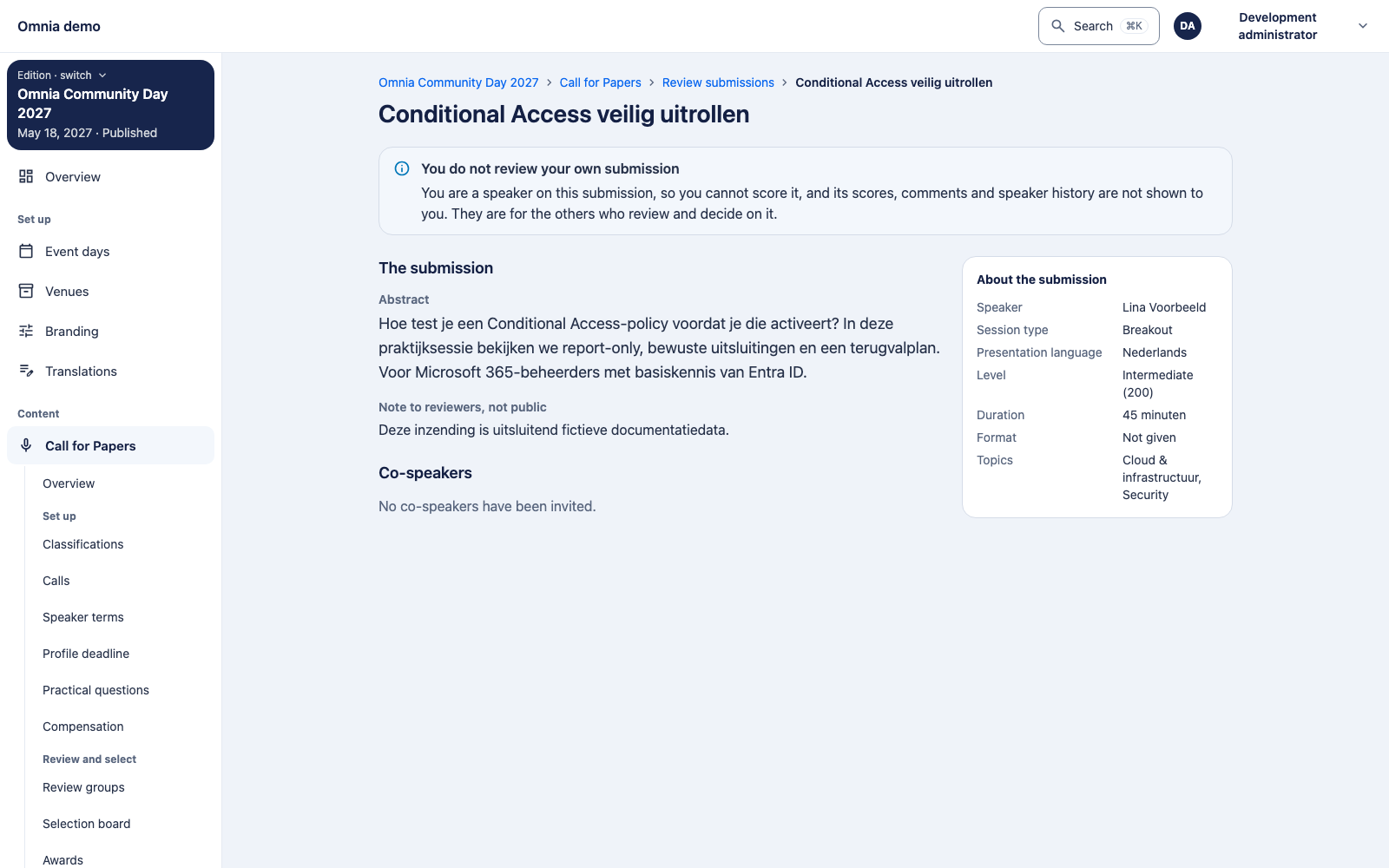
Did you record a review before later becoming a speaker or co-speaker? Where that earlier own review remains accessible, it is read-only; other reviews remain protected. The earlier score keeps counting unless you had declared a conflict. Becoming a speaker and declaring a conflict are different events.
Common questions
My work list is empty. Has everything been reviewed?
Not necessarily. Check the edition, filter, review permission, group assignment and whether proposals were actually submitted. The team must also check for proposals left without a group. Own submissions, withdrawn submissions and internally decided submissions do not appear as new review tasks.
I am an administrator. Why can I not score?
Selection management and reviewing are separate permissions. You also need review permission and a reviewer seat in the relevant group. You cannot score proposals in which you speak or co-speak, or proposals no longer under review.
My score disappeared from the list. Was it deleted?
An internal decision can remove a submission from your reviewer list. Existing reviews are retained. Ask the selection team to check the state; do not create another proposal or review just to bring it back.
Handover to selection
When your own work is complete, the selection team can use reviews to prepare decisions. A high score accepts nothing, and your comment is not automatically sent to the speaker. A new proposal may still appear as a review task later while the call continues accepting submissions.