Plan in the time grid
The planner places sessions on a day, at a time and in a room. Everything you do here is private draft work until you publish it. This page is for the programme planner; the last section explains what attendees see after exceptional changes.
Before you start, check that the edition has days, venues, rooms and layouts. Without a known capacity or layout, a placement can be saved but not fully assessed.
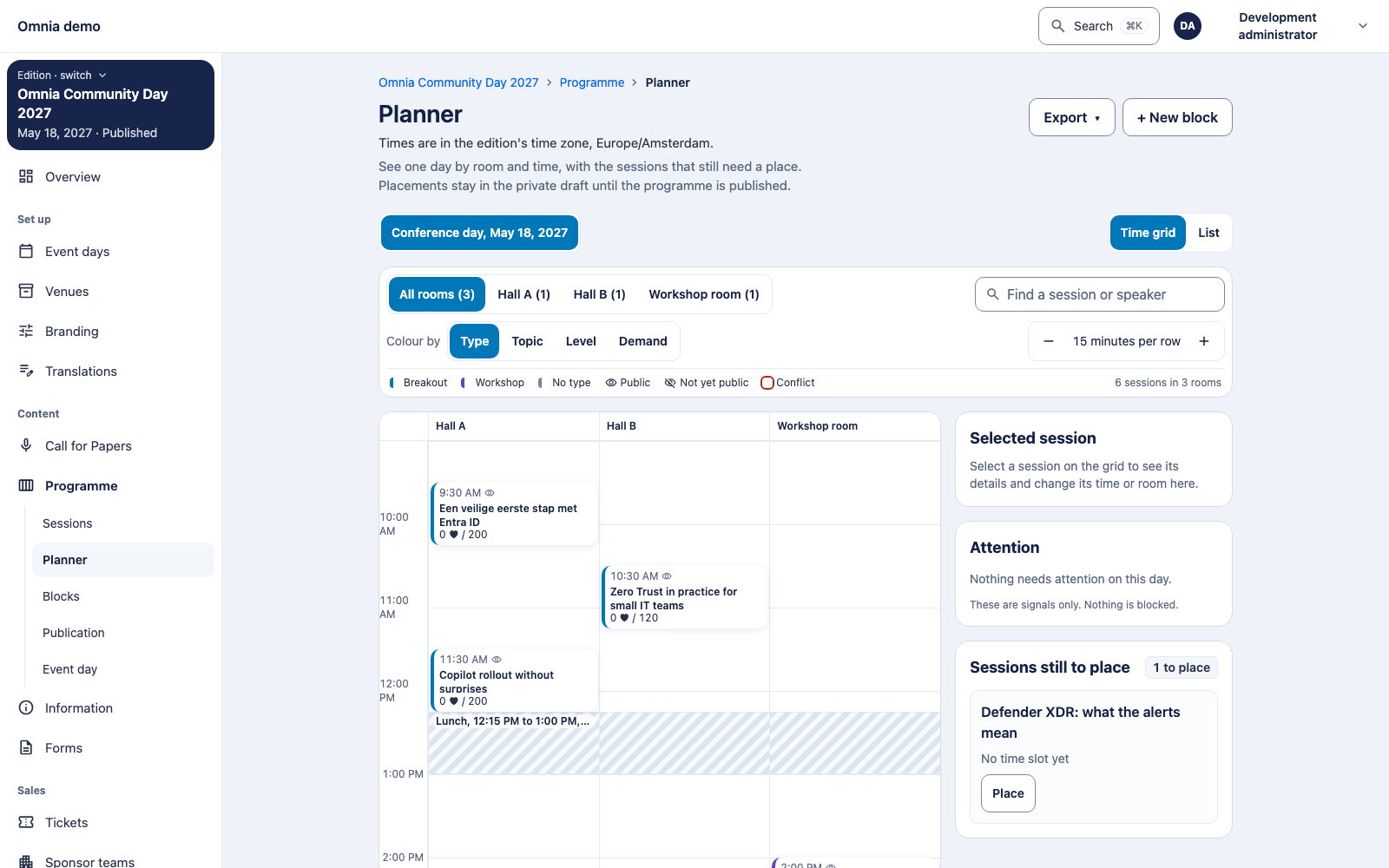
Choose a view
Open Planner in Programme and pick a day. The time grid is the default: rooms as columns, time as rows. Under Show the day as you can switch to the List, an accessible alternative where every action is a normal form. The list is also where you filter sessions that are still unplaced.
In the time grid:
- Zoom in or out to 5, 15 or 30 minutes per row (default 15). Moves snap to this step.
- Rooms to show filters the columns by room group.
- Find a session or speaker highlights matching cards.
- Blocks such as lunch or a keynote appear as a band behind the sessions. An event-wide block is shown for every room.
- Colour by Type, Topic, Level or Demand. With demand, a card shows interest against seats, for example 112 ♥ / 80: 112 eligible attendees favourited the session and the room has 80 seats. Repeated time slots show explicit choices instead. The legend explains Below warning, Warning, Critical and No demand figure; see demand and interest.
Click a card to open the Selected session side panel with time, room, capacity, status, speakers and demand. From there you can open the session, see all its time slots, or use Change time or room and Save time and room.
Move a session
You can move a card in three ways; all of them save the same draft placement and get the same checks:
- Drag the card to another time and room.
- Keyboard: focus the card and press Enter or Space to pick it up. The arrow keys move it one row (Up/Down) or one room (Left/Right). Enter puts it down; Escape cancels.
- Side panel: enter the time and room and choose Save time and room.
After a move, a message confirms {title} moved to {time} in {room}. The change stays private until published. Choose Undo, or press Ctrl+Z (Command+Z on a Mac) while that message is shown and focus is not in a text field.
When a move is refused
Omnia refuses a placement that would double-book, and names what is in the way. Nothing is changed:
- the room or the physical space is already in use, for example “Opening keynote” already uses Hall A from 09:00 to 10:00;
- a block occupies the space at that time;
- a speaker would be in two sessions at once, for example Alex Example already takes part in “…” from … to ….
A workshop room smaller than its sign-ups is a warning, not a refusal: Room smaller than the sign-ups. The placement is saved, publication remains possible and no reservation is removed. Decide whether to move the workshop.
If someone else just changed the session, you see This session was just changed by someone else. Choose Reload the day and check the latest version before you move it again.
Blocks. Saving a block that takes up a shared physical space is refused when it overlaps a placed session, including draft placements. Each session in the way is named. Move those sessions first.
Use the attention list
Attention collects signals for the day: rooms that are too small for the expected interest, with suggestions for a free larger room or a swap, and topic clashes where several sessions on the same topic and level run at the same time. These are signals only; nothing is blocked and no suggestion is applied automatically.
Place unplaced sessions
In the time grid, the drawer Sessions still to place lists them; Place opens the session’s time slots. To filter them by speaker, topic, language, level, type or intended day, switch to the List view. Room overlaps are also listed there.
Exceptional changes to a time slot
Once a time slot is public, you cannot simply move or remove it. Use an exceptional change on the session’s Time slots tab. Each one opens a dialog, needs a Reason for the change and becomes a private revision with Mark ready to publish. Nothing changes for attendees until you publish it.
| Change | Where | What attendees see after publication |
|---|---|---|
| Withdraw placement… | ⋯ menu of a public time slot | The time and room show as to be announced again. |
| Cancel time slot… | ⋯ menu of a public time slot | That time slot is marked cancelled. |
| Cancel session… | Page action | The session and every time slot are cancelled. |
| Reinstate… | ⋯ menu of a cancelled time slot | The time slot takes place again, with time and room to be announced until a placement is published. |
For withdrawal and cancellation you also confirm the verified actual state of the time slot: Not started, Running or Completed. Omnia refuses a change to a running or completed time slot, a time slot that is already cancelled, and a session cancellation when no time slot remains. A placement that was never public is removed with Unplace instead.
After Mark ready to publish, choose Open Publication and review the change in its own group (Placement withdrawals, Time slot cancellations, Session cancellations, Reinstatements). See publication.
What attendees see
- A cancelled session leaves the public programme list. Its direct link still works and shows This session is cancelled.; time, room and the favourite button are hidden.
- In My schedule a cancelled session or time slot is marked Cancelled. For a repeated session: One time of this session is cancelled. The other time is unchanged, and nothing is moved to it for you.
- A withdrawn placement shows Time to be announced.
Programme change notifications are not sent yet. Inform speakers and attendees through your own communication. See the attendee view.
What this page does not cover
The planner does not check people in, measure room occupancy or control timers and captions. Live-room integration is still open. Browser, screen-reader and native-language acceptance of these screens is outstanding (#488).