Provide session material
Session material is an uploaded file or a resource link that belongs to one Programme session. Upload, safety check, access deadline and attendee entitlement are separate steps. This page is for the speaker, the organiser and the attendee.
-
Confirmed speaker or staff
Upload a PDF or PPTX
The file starts as Awaiting checks.
-
Omnia
Run the safety check
A clean file becomes Available; an unsafe or unsupported file is Rejected.
-
Organiser
Communicate the access deadline
Without a communicated deadline nobody can download.
-
Attendee
Download with the right entitlement
A ticket for the session’s day or, for a workshop, a confirmed reservation.
Each step is checked again at download. A favourite or having attended gives no access.
For speakers
Only a confirmed participant of that exact session can upload. Another speaker’s confirmation does not count for you.
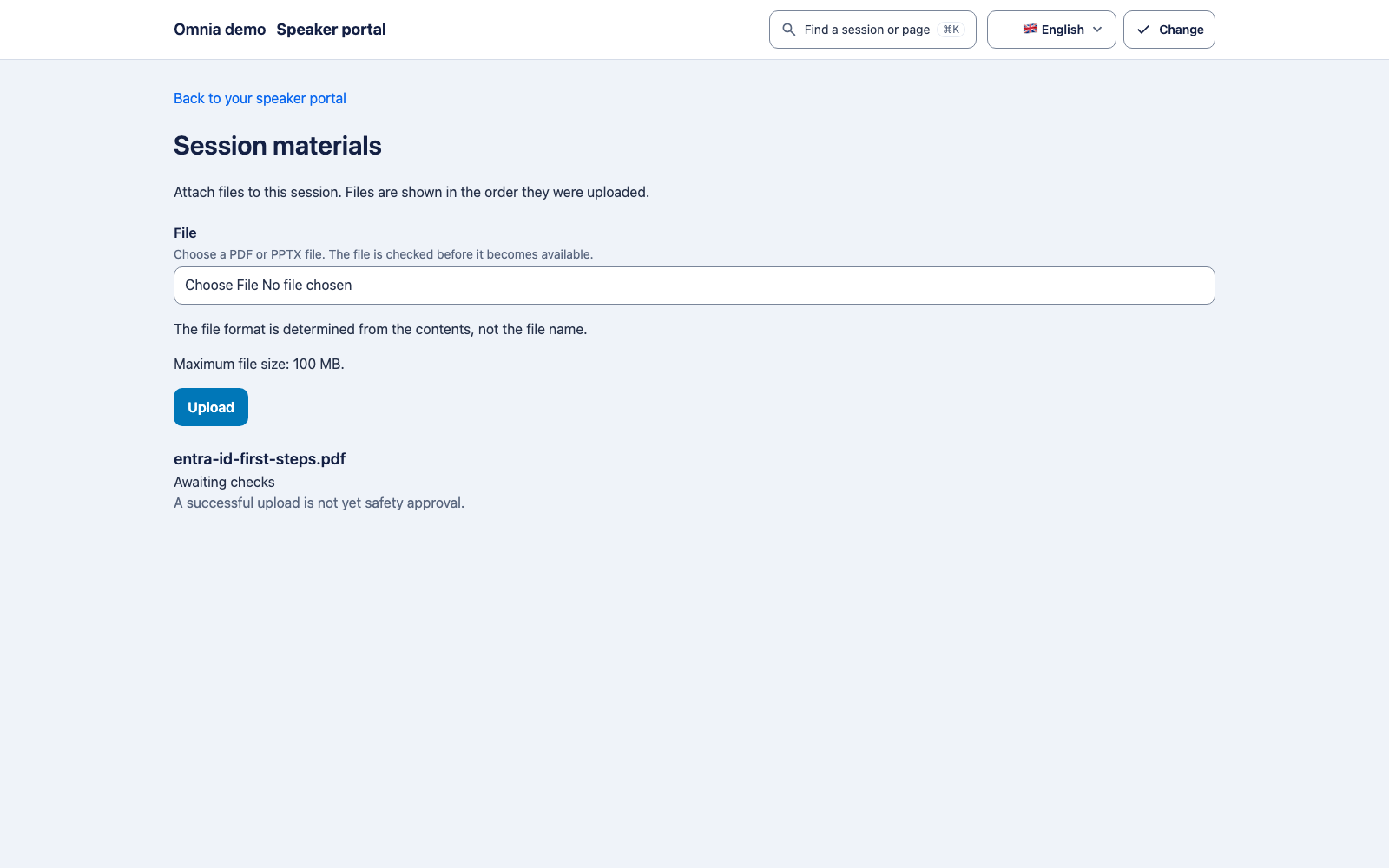
- In the speaker portal, open your session and choose Slides and materials. After the CFP handover you can also use Open session materials.
- Choose a PDF or PPTX file of at most 100 MB. Omnia determines the format from the contents, not the file name. Macro-enabled presentations, slide shows and templates are refused.
- Check the status. Awaiting checks means the upload succeeded but the file is not approved yet. Available means it passed the safety check. Rejected gives a reason: the file did not pass the safety check, is not a PDF or PPTX, or is too large.
- For a rejected file, fix the cause and upload a new version. Refresh the page after an uncertain result before uploading a duplicate.
Speakers upload and see the status; replacing or withdrawing an existing file is done by the programme team. If a replacement is pending or rejected, you see it under Replacement.
Resource links. Confirmed speakers can add, correct and withdraw links to external resources through the API. The speaker portal has no screen for links yet. Speakers see the status and version of a link, but not who created it, timestamps or the withdrawal history; programme staff see the full history.
Do not include personal data, secret keys or internal customer files. Use material for which you hold the required rights.
For organisers
Programme staff manage material on the session’s Materials tab.
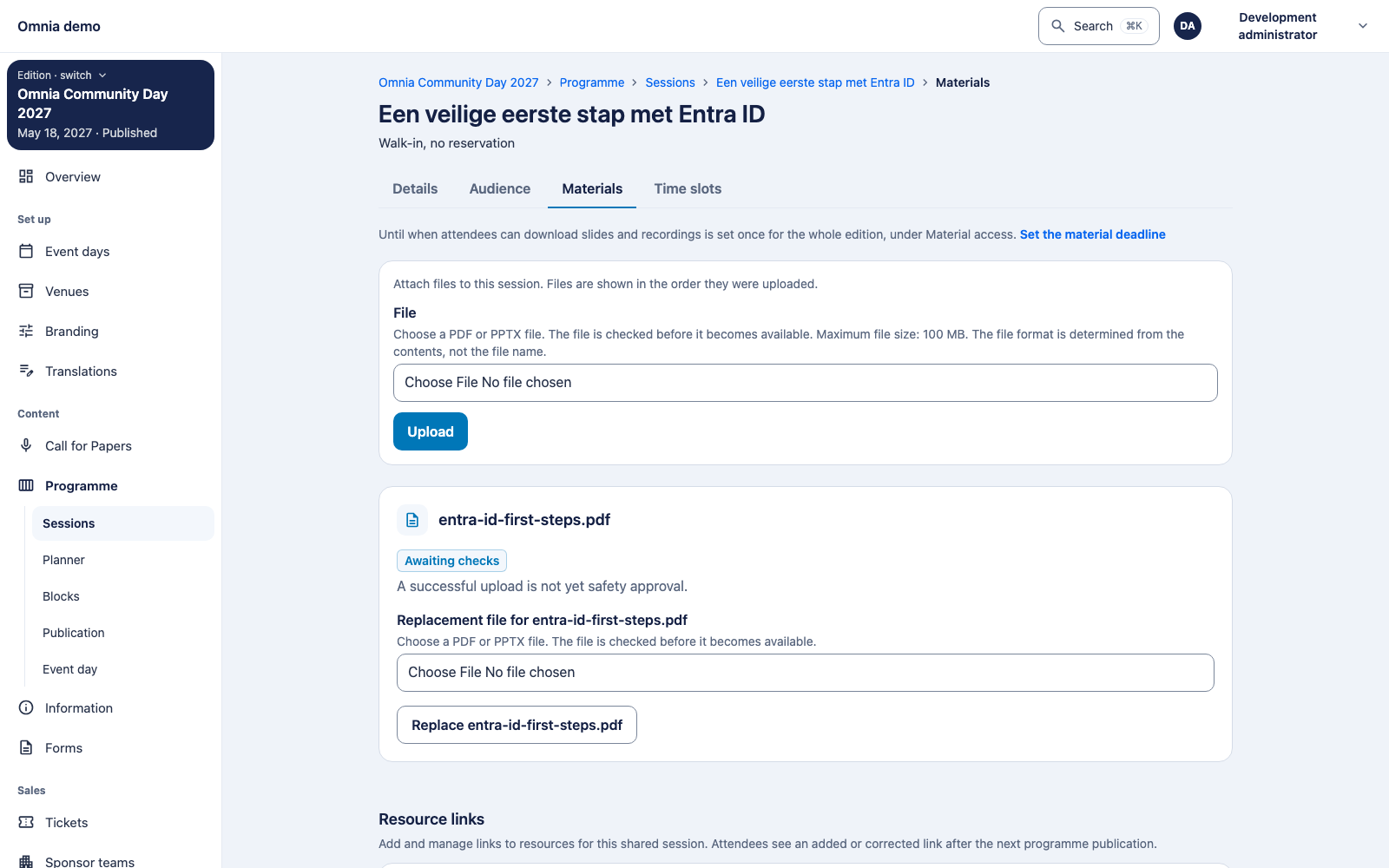
- Upload and replace. A replacement keeps the same material and is checked on its own. The current file stays downloadable until the replacement passes. You cannot send another replacement while one is still being checked.
- Withdraw. Give a reason and confirm Withdraw this material? Access stops immediately; copies already downloaded cannot be recalled.
- Resource links. Use Add a resource link, Correct link and Withdraw resource link. Additions and corrections reach attendees only with the next programme publication; a withdrawal hides the link at once. A link opens an external destination that no ticket check or safety scan protects.
- Safety check. If a check finds a threat, the file is rejected, even when it was already available, and downloads stop at once. If the scanner cannot run, the file stays Awaiting checks and is retried; it is never approved that way. Omnia does not notify the uploader of a rejection; tell the speaker yourself.
Set the material access deadline
Open Material access in Programme. The deadline is the moment attendees can no longer download files or see restricted links. Files, history and staff access stay.
- Until a deadline is communicated, nobody can download.
- The proposed default runs until 14 calendar days after the edition ends. It is only a proposal until you choose Communicate the proposed default.
- Or set an Access end date with an optional Closing time (without a time, access lasts until the end of that day) and choose Communicate custom deadline. Confirm in the dialog.
- If a file becomes available before any deadline was communicated, Omnia communicates the default at that moment.
- Moving the edition’s end changes the proposal, never a deadline that is already in effect.
“Communicated” means shown in the administration app and on the public session page as Available until …. Omnia does not send an email about it.
The per-session-type material deadline in the CFP settings is a different date: it tells speakers when to deliver, and does not affect attendee access.
For attendees
Everyone can see a session’s file list. To download, sign in. Omnia checks each download again:
- the file is available and the access deadline has not passed;
- for a walk-in session: you have a valid ticket for that session’s day; access to another day is not enough;
- for a workshop: you have a confirmed reservation for that workshop; a day ticket alone is not enough;
- booth drop-in sessions and sessions without an attendance policy offer no downloads.
Favourites, choosing a time or having attended give no access. After the deadline you see that access to the event’s materials has ended.
Resource links are not yet shown to attendees: there is no public view of them in the reviewed revision (#2023).
What this does not mean
- Recordings are not supported; only PDF and PPTX files are accepted.
- Acceptance of resource links for speakers and attendees is still open (#2023).
- A full upload, scan and download test with different attendee entitlements belongs in installation acceptance.